Getting Started
Introduction
Wellhub is a SaaS platform that enables companies to provide a well-being benefit to their employees. As a business-to-business company, Wellhub provides services to subscribing companies and limits access to its platform to its clients' employees and their family members. This model requires Wellhub to validate that people accessing the platform are employees of a subscribing company. It also allows Wellhub to work with the companies to set up employee payments through payroll deductions, much like other benefits that employees may use. While Wellhub has implemented a number of options for handling these processes, the most commonly used options take advantage of simple file exchanges.
For Eligibility management, Wellhub receives an Eligibility File from the company. This file contains a minimal set of information that allows Wellhub to validate users and provide a number of communication and reporting services to the company.
For Payroll deductions, Wellhub provides a standard Deduction File containing the information required to deduct amounts owed to Wellhub based on employees' use of the Wellhub plans.
For Reporting, Wellhub provides a set of reports to monitor the usage of the benefit by the client's employees, including data from the last 12 months (D-2).
These are the detailed flows available per entity type: NOTE: SEs - single entity; MEs - multi entity; CPs - channel partners.
Flows | Eligibility
Loading diagram...
Loading diagram...
Flows | Payroll
For clients with payroll as a payment method, every billing cycle the deduction file and deduction file for leavers (in case there were employee removals) will be provided. This is a list of all the employees that paid for a Wellhub subscription with paycheck in a given billing period. This will then be used by the client to discount the subscription amount when running payroll.
Loading diagram...
- Note: for now, only the .zip is available for MEs (with individual files within it). In the future, there will also be a consolidated file.
Flows | Reporting
The reporting flow is crucial to track the usage of the Wellhub benefit, as it provides a view on the adoption of the solution, as well as the subscriptions data and check-ins of employees and family-members (in case the client has that SKU).
Loading diagram...
Wellhub supports SSH File Transfer Protocol (SFTP) to ensure security in these file exchanges. SFTP uses the Secure Shell (SSH) network protocol and public/private key pairs to enforce security.
General Information
Connection settings
- Host:
sftp.clients.wellhub.com - Port:
443
Limits
| Limit | Value |
|---|---|
| Total number of sessions per client | 5 |
| Max file size | 40 Mb |
| Total number of files per session | 2 |
| Unprocessed files per session | 1 |
| Accepted file types | .xlsx, .xlsx.pgp, .xlsx.gpg, .csv, .csv.pgp, .csv.gpg |
Authentication
To interact with the SFTP Server, you'll need to generate an SSH key in your computer and create an SSH user in the Wellhub Clients Portal , and once that is done, you'll then need to register your SSH public key in the Wellhub Clients Portal.
Generate an SSH Key
You can generate a new SSH key on your local machine.
- Open a Terminal and paste the text below, replacing the email "your_email@example.com" used in the example with your email address.
ssh-keygen -t ed25519 -C "your_email@example.com"
When executing this command, the SSH key generator will ask for information such as where to save the new key and whether or not it should have a passphrase. If you have any doubts during this process, refer to this step-by-step guide from GitHub.
Create an SSH User
With an SSH key in hand, access the Portal using your Wellhub account.
The process for creating a new SSH user is the same, regardless of the type of management of your Wellhub account.
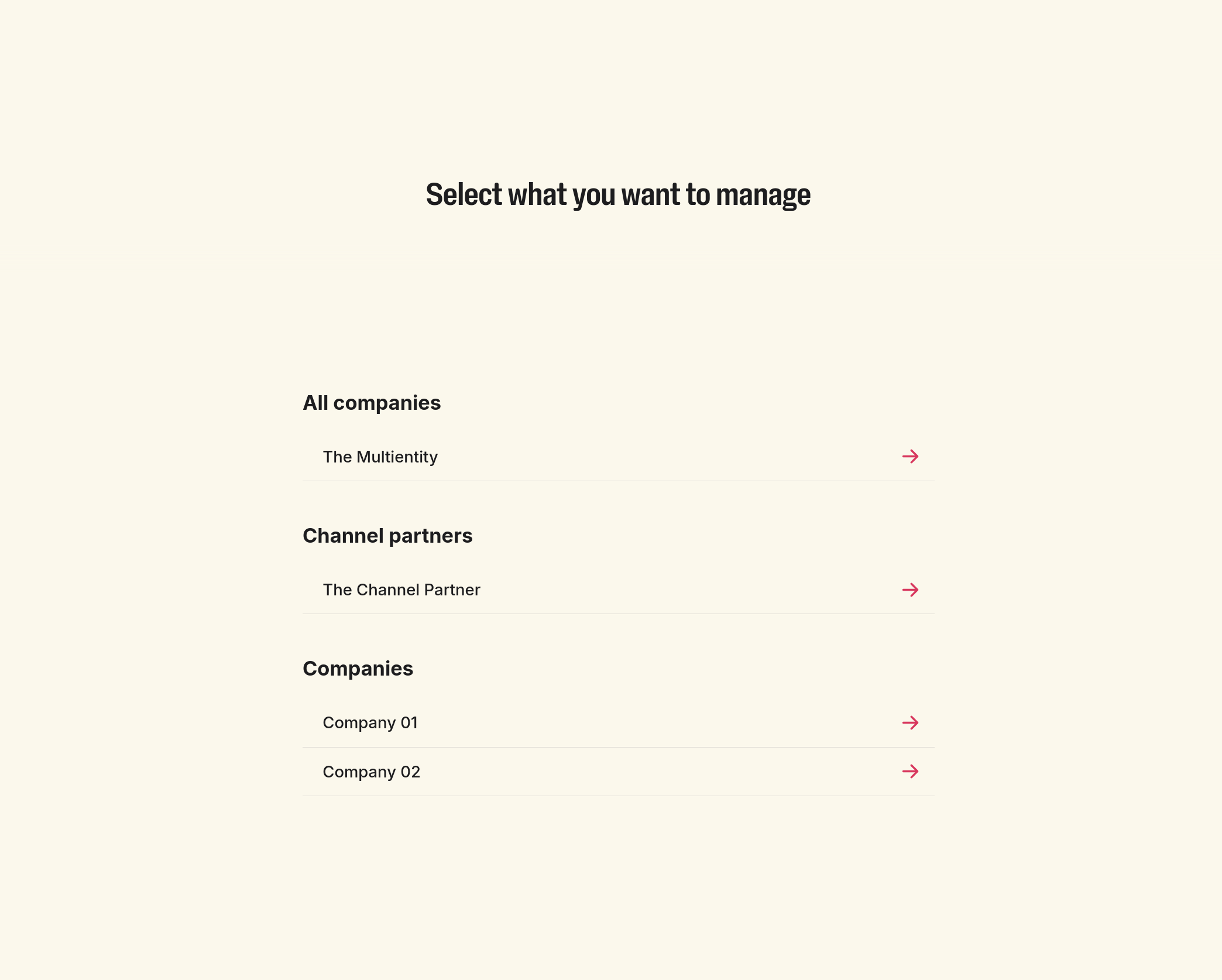
- Just make sure to correctly select which entity you want to manage through the SFTP Server, that is, just one company (through Single Entity) or multiple companies (All companies access for Multi Entity; or Channel partners).
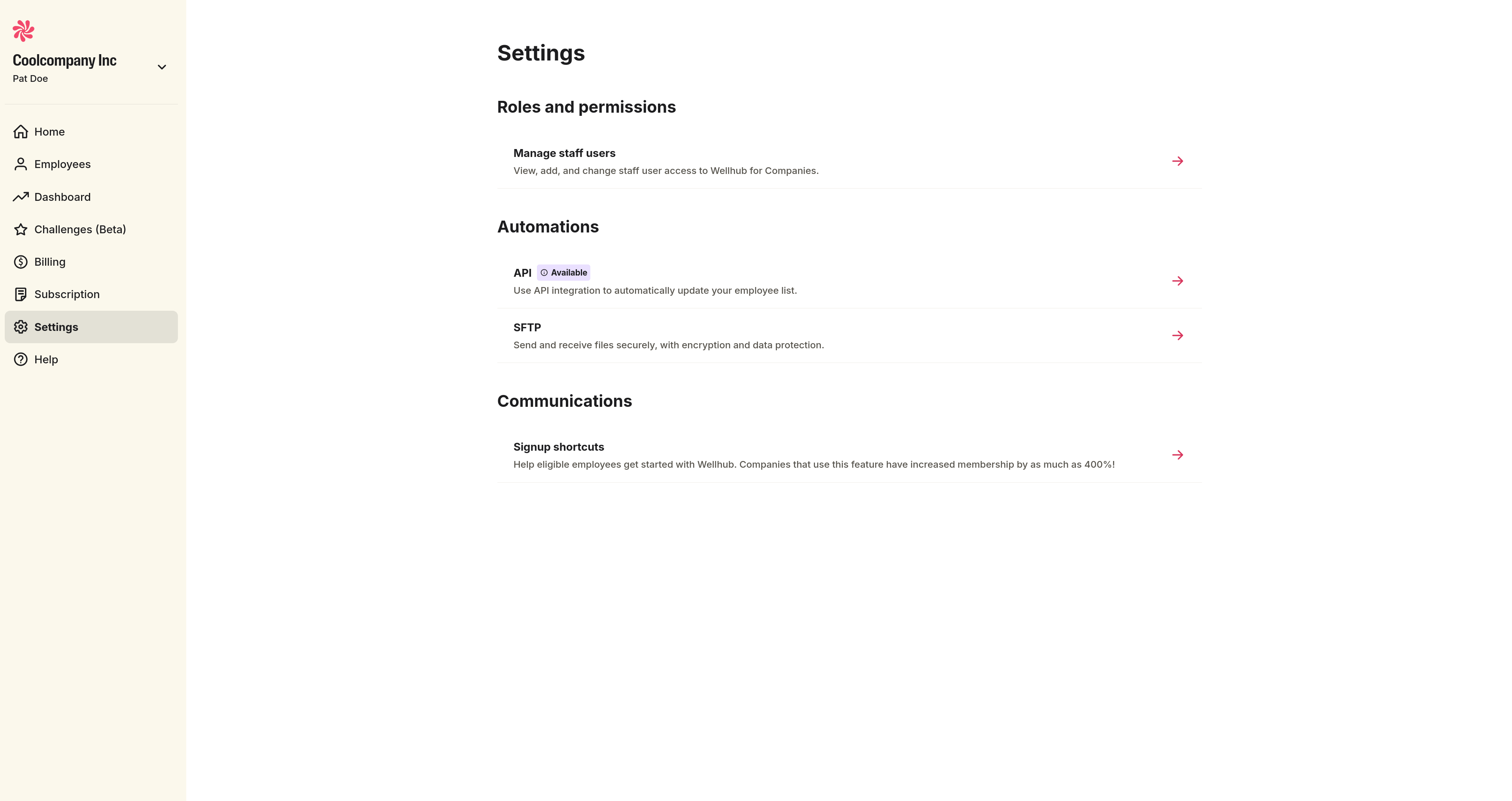
- In the sidebar menu, click Settings, and in the Automations section, click SFTP.
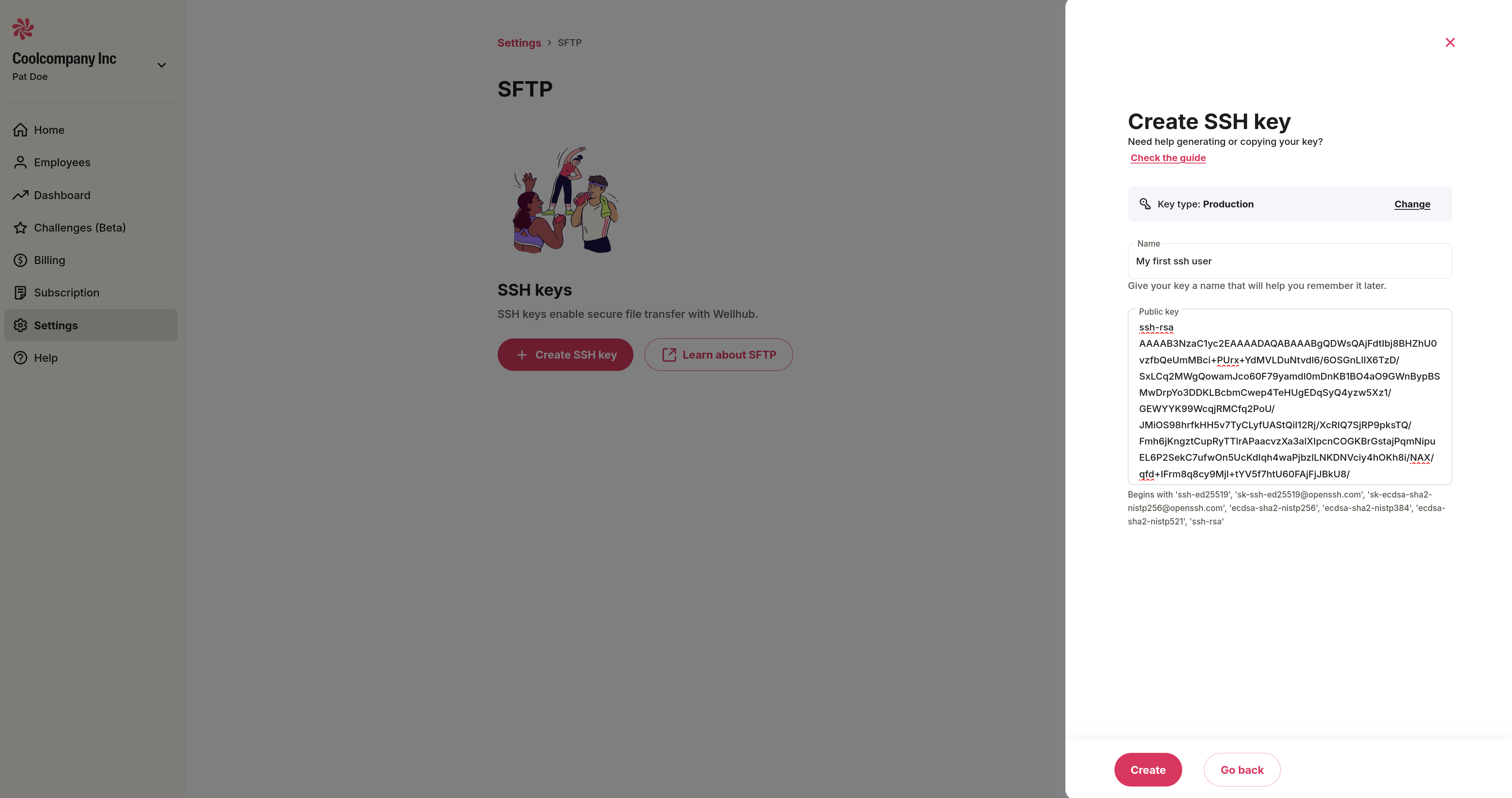
Now, on the SFTP page, click on Create SSH key.
Give a name to this new user and paste the public key of your new SSH key in the appropriate field.
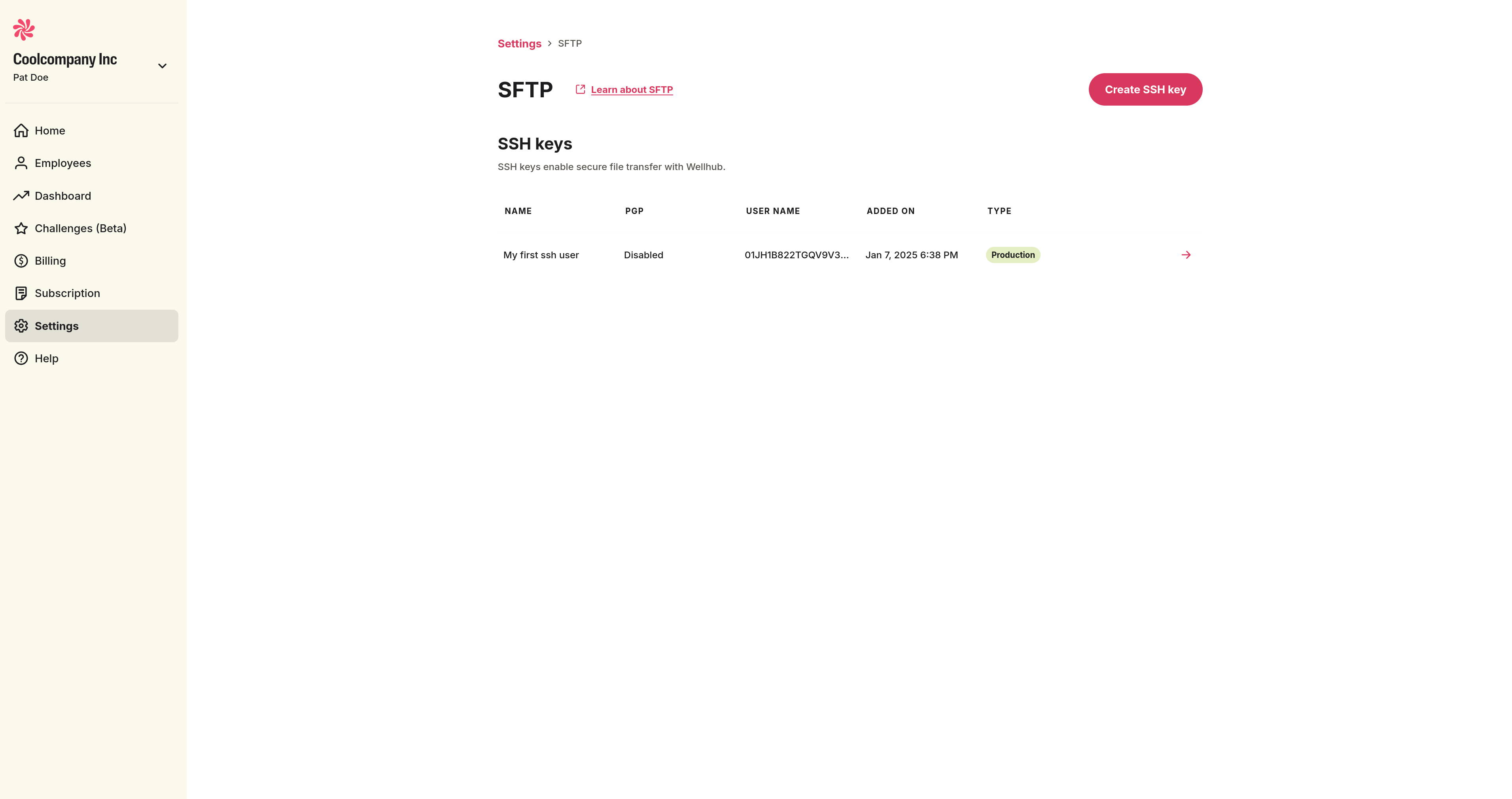
- After clicking Create, you should be able to see your new SSH user listed on the SFTP page.
Accessing the SFTP Server
Before connecting to the SFTP Server, we need the User name of an SSH user created in the Portal.
By accessing the Portal and navigating to the SFTP page, we can see all SSH users created to manage this company.
Go to the SFTP page (sidebar menu, Settings, then SFTP) in the Portal.
Choose an SSH user and click the right arrow icon.
In the drawer, click Copy or manually copy the User name.
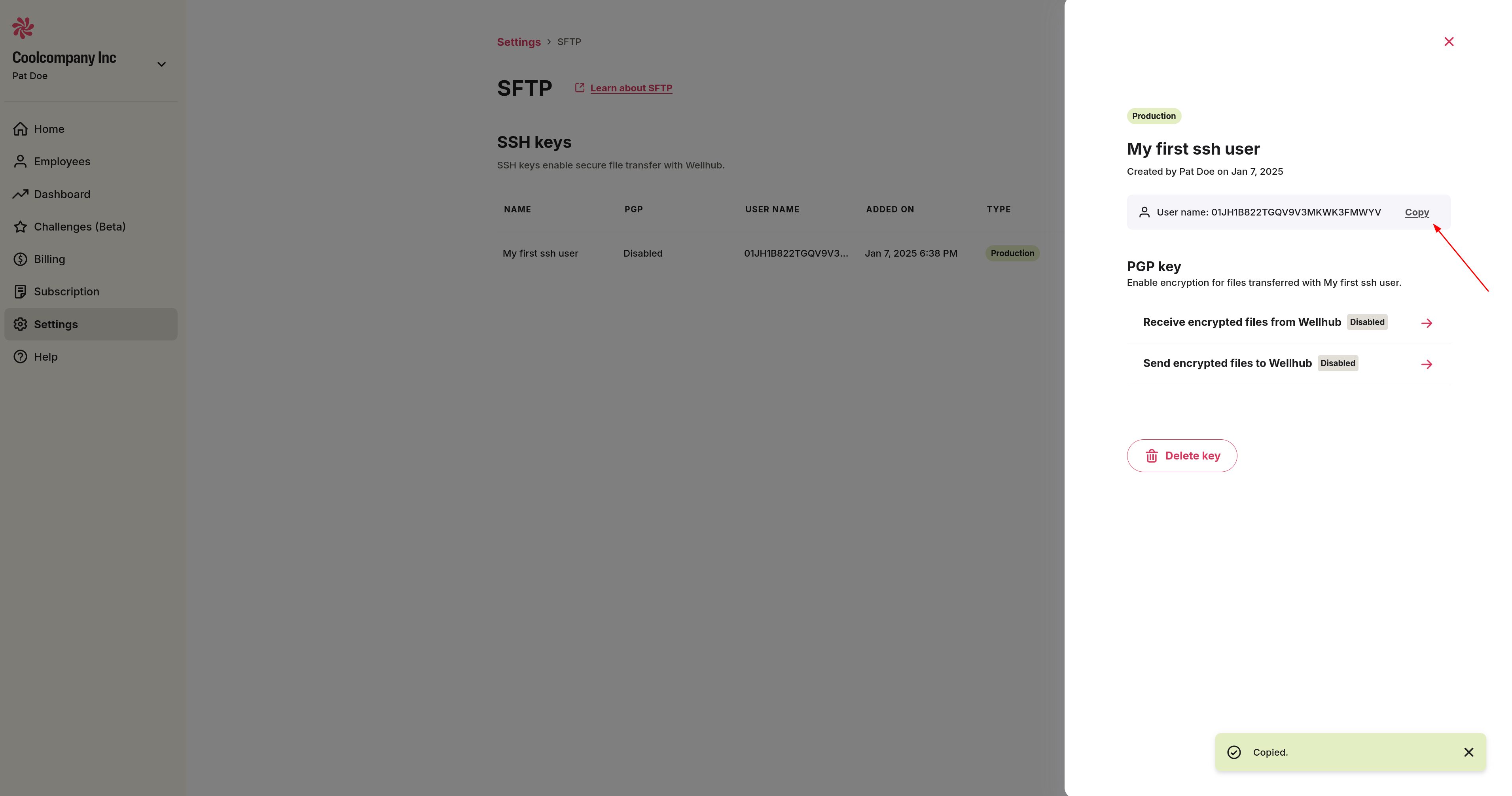
Connect to the SFTP Server
- Open a terminal and run the command below, replacing
your_usernamewith the User name copied in the previous step.
sftp -P 443 -i ~/.ssh/id_ed25519 your_username@sftp.clients.wellhub.com
The flag -i ~/.ssh/id_ed25519 indicates the location of your SSH key's private key. Change the location if necessary.
- Upon executing this command, you should see the welcome message from the SFTP Server.

File Exchange Frequency
The first production Eligibility File must be sent to Wellhub at least one week before the date that the Wellhub program will be announced to your company’s employees.
Then, for maintenance purposes, the Eligibility File must be sent to Wellhub at a minimum once a month. However, when integrating full files we don't recommend sending it more than once a day.
File Format Requirements
- It must include the configured eligible identifiers for the client/company tax id - see further details here
- The header is mandatory, and needs to be in English for all countries
- The column order is not mandatory
- The column titles (attribute names) must be written exactly as indicated on
- Unknown columns will be ignored
- The CSV can use any of the accepted separators, as: comma (,), semicolon ( ; ), tab, and space
- CSV UTF-8 is the format supported
- National ID and Tax ID are validated as a mask. If they are wrong, an error is thrown - see further details here
- Accepted file types: ".xlsx", ".csv" -> for SSH; ".xlsx.pgp", ".xlsx.gpg", ".csv.pgp", ".csv.gpg" -> if PGP is enabled Note that even though ".csv" is supported, since this file format can be mutable, using ".xlsx" or encrypted files with PGP is highly recommended.
File Naming Convention
For production: your company name_Eligibility_mmddyyyy.csv
For test: your company name_Eligibility_Test_mmddyyyy.csv