Instructions for Multi Entities
Introduction
When you want to manage multiple companies in one go (aggregated), we call this "Multi Entity".
Through Wellhub's SFTP Server, you can perform certain operations for a specific company, or for all your managed companies at the same time.
The interaction with the SFTP Server is simple - it's a file system where you can navigate between directories, list, upload, and download files.
These are the operations supported on the SFTP Server for Multi Entities:
Creation and updates
Loading diagram...
Details
Loading diagram...
Flows | Payroll
For clients with payroll as payment method, every billing cycle the deduction file and deduction file for leavers (in case there were employee removals) will be provided. This is a list of all the employees that paid for a Wellhub subscription with paycheck in a given billing period. This will then be used by the client to discount the subscription amount when running payroll.
Loading diagram...
- Note: for now, only the .zip is available for MEs (with individual files within it). In the future, there will also be a consolidated file.
Encrypt the content of the files you upload and/or download. See Encryption.
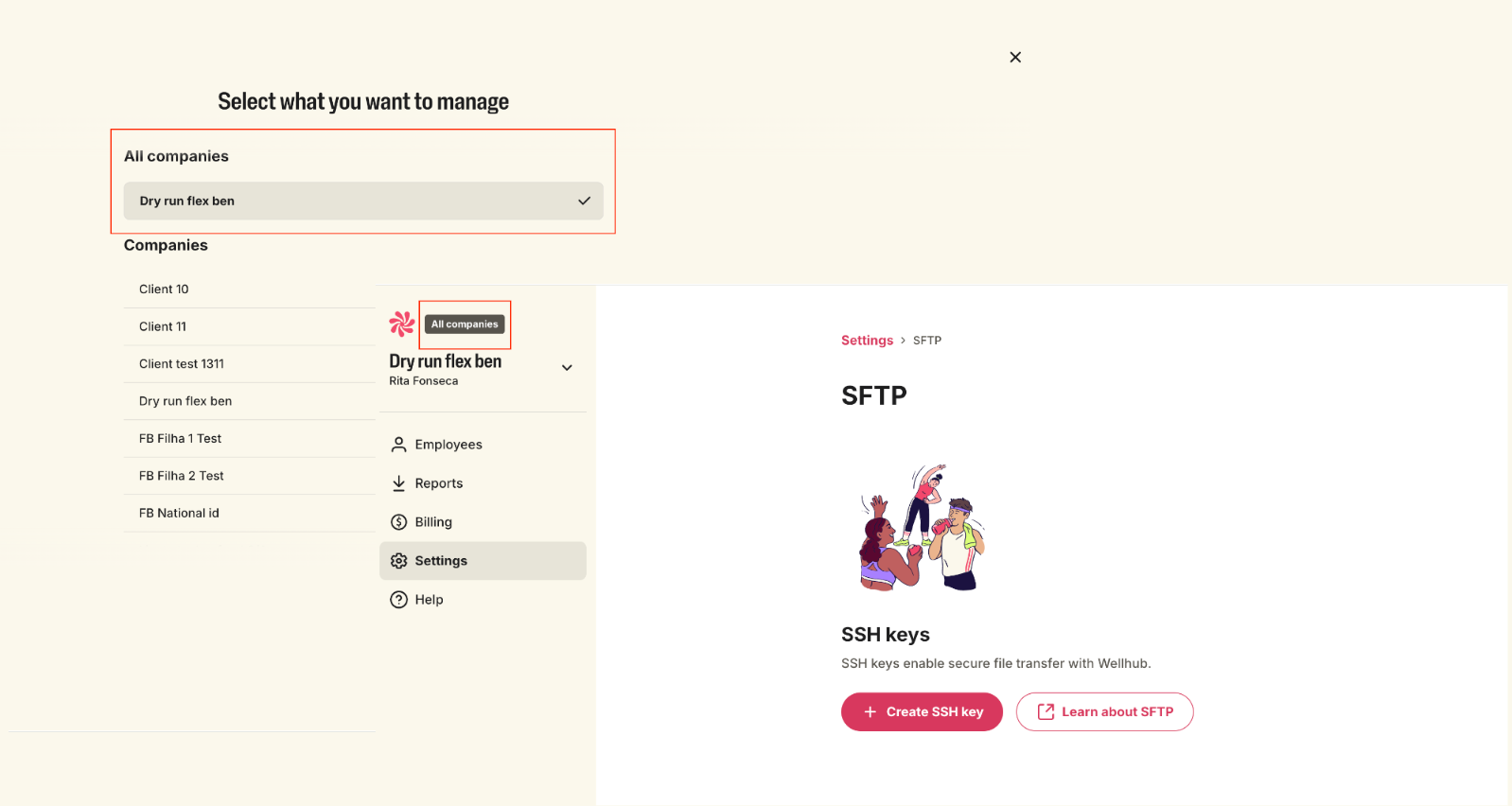
To manage multiple companies within the multi-entity structure, you must select the ‘All companies’ view when generating the SFTP keys. See Getting Started.
The following sections provide more details on each operation.
Overview of the file structure
File Structure
/
├── multientity/
│   ├── employees/
│   │   ├── download/
│   │   │   └── {Timestamp}_Eligible-list.csv
│   │   └── upload/
│   │       ├── all/
│   │       ├── error-details/
│   │       │   ├── {Timestamp}-{Uploaded-Filename}.csv
│   │       │   └── ...
│   │       └── status.csv
│   └── payroll/
│       ├── leavers/
│       │   ├── {company name (single entity)}_YYYYMM_wellhub_partial_payroll_deduction.csv
│       │   └── ...
│       ├── {company name (single entity)}_YYYYMM_wellhub_payroll_deduction.csv
│       └── ...
└── reports/
        └── {start date}-{end date}_SUBSCRIPTION-HISTORY.zip
        └── {start date}-{end date}_SUBSCRIBERS-SNAPSHOT.zip
        └── {start date}-{end date}_CHECK-INS.zip
        └── {start date}-{end date}_ADOPTION-OVER-TIME.zip
Employees
Through the SFTP Server, you can manage the employees of multiple companies at the same time. It's simple: include on the file all the tax ids you want to send updates for, and we will update the base accordingly. Note: If a given tax id isn't included on the upload, its eligible base will remain unchanged.
Some supported operations are:
- Full file - Update the entire employee base.
- Download eligible list - Download the list of registered employees.
- Upload history (status.csv) - Download the status of uploads.
- Error details - Get the details for the errors found during an upload and what's required to address them.
Overview of the employees' directory structure
Directory Structure
/
├── multientity/
│   ├── employees/
│   │   ├── download/
│   │   │   └── {Timestamp}_Eligible-list.csv
│   │   └── upload/
│   │       ├── all/
│   │       ├── error-details/
│   │       │   ├── {Timestamp}-{Uploaded-Filename}.csv
│   │       │   └── ...
│   │       └── status.csv
│   └── payroll/
└── ...
- The initial directory is the root /.
- /multientity is the directory representing all companies being managed.
- /multientity/employees/upload/all is the directory where you can update the employee base by uploading a Fullfile file.
- /multientity/employees/upload/error-details is the directory with the rejected upload error report.
- /multientity/employees/upload/error-details/{Timestamp}-{Uploaded-Filename}.csv is the error report of a specific upload.
- /multientity/employees/upload/status.csv is the file where you can download and view the status of each upload.
- /multientity/employees/download/{Timestamp}_Eligible-list.csv is the file where you can download and view the list of employees.
Upload a Fullfile file
Once connected to the SFTP Server, we can replace the employees base of all companies in the same time. In other words, we can add, remove, and edit employees in the same file.
Since Fullfile is a replace operation, it requires extra attention.
The SFTP Server expects the Fullfile to contain all the employees already created for the companies (if there is a company/tax id that doesn't have changes, you don't need to include it on the file). For the companies/tax ids in the file, a given employee who was part of the database and isn't now part of the file, will be removed. The employees that are new entries, will be added accordingly. For employees found in both the file and the database, will be edited if any of their fields were changed.
Note: Even though it is possible to remove employees by uploading a Fullfile, it's not possible to remove all employees (as there's a safety threshold; if this is surpassed we will throw the 'Database wipe' error and reject the upload).
- Navigate to the
/multientity/employees/upload/all.
cd /multientity/employees/upload/all
The command below uploads the all-employees.csv file. Replace all-employees.csv with your file containing the list of employees.
put all-employees.csv
File Organization
| Company Tax ID | Name | National ID | Employee ID | Department | Payroll ID | Cost center | Office zip code | Payroll Enabled | |
|---|---|---|---|---|---|---|---|---|---|
| 37.211.173/0001-69 | Phoebe Bridgers | maxinethedog@bridgers.com | 764.254.640-89 | 331234 | UX | 1324 | 1-114-873 | 04571-926 | Yes |
| 37.211.173/0001-69 | Lucy Dacus | dacus@modigliani@com | 151.846.620-65 | 834372 | Engineering | 7375 | 1-114-773 | 04571-926 | No |
Download the status file
Once connected to the SFTP Server, you can download the status of the most recent uploads. This is very useful for checking if a specific upload was successful or rejected.
- Navigate to the
/multientity/employees/uploaddirectory.
cd /multientity/employees/upload
- The command below downloads the status.csv file.
get status.csv
File Organization
It contains information about the status of the last 20 uploads (regardless of their source).
| filename | batch_type | date_and_time | processing_status | source |
|---|---|---|---|---|
| Composition between the timestamp and the uploaded file name | Upload type, can be: full_file, newcomers or leavers (exclusive to single entities) | Date and time when the upload occurred | Status can be: Validating, Validated, Pending, Processing, Succeeded, Succeeded with errors (exclusive to channel partners), Rejected, Deleted, Approval_Requested | Source of the upload, can be SFTP or W4C |
Download the error details
Once connected to the SFTP Server, you can download the files with error details of a rejected upload. For example, you uploaded a Fullfile, checked the status.csv, and saw that this upload failed. You can check the reason for the failure using the error details.
- Navigate to the
/multientity/employees/upload/error-detailsdirectory. And display the list of error details.
cd /multientity/employees/upload/error-details
ls
- The command below downloads the error details file.
get {Timestamp}_{Uploaded file name}.csv
File Organization
It contains information about the type of error and where the error is.
| Company Tax ID | Error Source | Line ID | Field Name | Error Type | Error Description |
|---|---|---|---|---|---|
| Points out which client had issues | This refers at what level the error occurred: Upload error - impacted the whole file, Client error - caused by a specific entity, Input error - refers to line errors | The line # will be displayed if applicable to the Error Source + Type | The impacted field will be displayed if applicable to the Error Source + Type | This refers to the type of error found | Will explain in detail what needs to be addressed |
Download the eligible list file
Once connected to the SFTP Server, it is possible to download the complete list of employees. This file enables listing all existing employees, which can be used as a reference to add or remove employees when performing a "Full file" operation.
- Navigate to the
/multientity/employees/downloaddirectory for this company.
cd /multientity/employees/download
- Download the
{Timestamp}_Eligible-list.csvfile.
get {Timestamp}_Eligible-list.csv
Payroll
Through the SFTP Server, you can download payroll information for the employees. Some supported operations are:
Deduction file - Download existing payroll files for the latest billing cycle. Deduction file for leavers - Download any existing payroll files for employees who have been removed (during the latest billing cycle). Note: Only employees with payroll enabled (field: "Payroll Enabled: Yes") will appear in the payroll files. There will be a file per company inside the .zip. The latest deduction file replaces the previous, therefore these won't be listed.
Overview of the payroll file structure
File Structure
/
├── multientity/
│   ├── employees/
│   └── payroll/
│       ├── leavers/
│       │   ├── {company name (single entity)}_YYYYMM_wellhub_partial_payroll_deduction.csv
│       │   └── ...
│       ├── {company name (single entity)}_YYYYMM_wellhub_payroll_deduction.csv
│       └── ...
└── ...
- The initial directory is the root /.
- /multientity is the directory representing all companies being managed.
- /multientity/payroll is the directory where you can download the payroll files.
- /multientity/payroll/{company name (single entity)}_YYYYMM_wellhub_payroll_deduction.csv is a payroll file. The name consists of the company name, the start and end dates of the period, and the UUID of the invoice.
- /multientity/payroll/leavers/{company name (single entity)}_YYYYMM_wellhub_partial_payroll_deduction.csv is a payroll file for removed employees. - The name is similar to the general payroll file, but with "partial".
Download payroll files
Once connected to the SFTP Server, you can download the available payroll files.
- Navigate to the
/multientity/payrolldirectory.
cd /multientity/payroll
- The command below downloads a payroll file.
get {company name (single entity)}_YYYYMM_wellhub_payroll_deduction.csv
File Organization
| Full Name | National ID | Employee ID | Amount due | Department | Cost center | Office zip code | Payroll ID | |
|---|---|---|---|---|---|---|---|---|
| Phoebe Bridgers | maximehedog@bridgers.com | 764.254.640-89 | 331234 | R$ 449,90 | UX | 1-114-873 | 04571-926 | 1324 |
| Lucy Dacus | dacus@modigliani@com | 151.846.620-65 | 834372 | R$ 449,90 | Engineering | 1-114-773 | 04571-926 | 1375 |
Download payroll files of removed employees
Once connected to the SFTP Server, you can download payroll files of employees who have been removed.
- Navigate to the
/multientity/payroll/leaversdirectory.
cd /multientity/payroll/leavers
- The command below downloads a payroll file.
get {company name (single entity)}_YYYYMM_wellhub_partial_payroll_deduction.csv
Reports
Through the SFTP Server, you can download usage data for the employees of a specific company. This is important to track employee engagement with the Wellhub services. Inside each .zip you will find a file per client under the multi entity structure.
Overview of the reports file structure
File Structure
/
└── multientity/
    └── reports/
        └── {start date}-{end date}_SUBSCRIPTION-HISTORY.zip
        └── {start date}-{end date}_SUBSCRIBERS-SNAPSHOT.zip
        └── {start date}-{end date}_CHECK-INS.zip
        └── {start date}-{end date}_ADOPTION-OVER-TIME.zip
Download report file
Once connected to the SFTP Server, you can then download any available reports for the group.
- Navigate to
/multientity/reports/directory.
cd /multientity/reports/
- The command below downloads the yearly usage report file.
get {start date}-{end date}_SUBSCRIPTION-HISTORY.zip
File Organization
Detailed directories: <start date>-<end date>_<report name>.zip Example: 2024-07-01-2025-07-01_SUBSCRIPTION-HISTORY.zip
File naming: Clientname_<start date>-<end date>_<report name>-wellhub.csv Example: Client1_2024-07-01-2025-07-01_subscription-history-wellhub.csv
The reports contain information from the last 12 months on:
- Engagement rates: A daily snapshot of the total number of eligibles, members, subscribers, and family-members (if applicable).
- Check-ins: A full list of the check-ins in Wellhub partners, for both physical and virtual activities. Includes family-member data (if applicable).
- Subscribers snapshot: A full list of the subscribers and their subscription details, including the plan selected and its price. Includes family-member data (if applicable).
- Subscription history: A full list of transaction events related to an employee’s subscription, such as: first subscription, upgrade, downgrade, pause, cancellation, and new subscription. Includes family-member data (if applicable).
Flexible Benefits
Flexible Benefits allow multi entities to upload credits for their clients, allowing a company's employees to allocate the credits to those that best suit their individual needs. For an employee to be eligible for credits, they need to be created in the eligibility flow.
Contrary to the eligibility flow, partial uploads are accepted. This means that, by default, the correct lines will be created; and the ones with errors will be rejected. Every time a full or partial rejection happens, the multi entity admins will be notified via email.
Overview of the credits file structure
Directory Structure
/
├── multientity/
│   └── flexben/
│       └── upload/
│           ├── add-or-update/
│           ├── removal/
│       └── download/
│           ├── upload_history.csv/
│           ├── errors/
│           │   ├── {Timestamp}-{Uploaded-Filename}.csv
│           │   └── ...
│           └── beneficiaries-list.csv
- The initial directory is the root /.
- /multientity is the directory representing all companies under the multi entity's structure.
- /multientity/flexben/upload/add-or-update is the directory to use if you need to create new credits and/or update existing ones.
- /multientity/flexben/upload/removal should be used to delete credits.
- /multientity/flexben/download/upload_history.csv is the file containing the status of the latest uploads.
- /multientity/flexben/download/errors/ is the directory containing the failed upload error report.
- /multientity/flexben/download/errors/{Timestamp}-{Uploaded-Filename}.csv is the error report referring to a specific upload.
- /multientity/flexben/download/beneficiaries-list.csv/ will download the snapshot of credited employees.
Manage the credits
There are two types of uploads available:
- Add or update - a file that will create new credits or edit existing ones
- Removal - a file that will delete existing credits
Upload an Add/Update credits file
- Navigate to the
/multientity/flexben/upload/add-or-update/.
cd /multientity/flexben/upload/add-or-update/
- The command below uploads the .csv file, creating the new credit entries and updating the existing ones.
put credit-employees.csv
File Organization
| Company Tax ID | National ID | Employee ID | Amount | Last Credited Month | Last Credited Year | |
|---|---|---|---|---|---|---|
| 1916628000102 | david.smith+fbstg01@wellhub.com | 10 | 12 | 2025 | ||
| 1916628000102 | elena.silva+fbstg30002@wellhub.com | 100 | 12 | 2025 | ||
| 12069193000116 | 59427909064 | 59427909064-0 | 50 | 12 | 2025 | |
| 12069193000116 | 70202860035 | 70202860035-1 | 45 | 12 | 2025 | |
| 12069193000116 | 37385391079 | 70202860035-2 | 75 | 12 | 2025 | |
| 12069193000116 | 20982323069 | 70202860035-3 | 30 | 12 | 2025 |
Upload a Credits removal file
Navigate to the /multientity/flexben/upload/removal/.
cd /multientity/flexben/upload/removal/
- The command below uploads the .csv file, deleting the credits.
put credits-removal.csv
File Organization
| Company Tax ID | National ID | Employee ID | |
|---|---|---|---|
| 1916628000102 | elena.silva+fbstg30002@wellhub.com | 59427909064 | 59427909064-0 |
| 12069193000116 | 70202860035 | 70202860035-1 |
Download the status file
You can download the status of the most recent uploads. This is very useful for checking if a specific upload was successful or failed. This file will contain the last 40 uploads (regardless of the method - W4C or SFTP), sorted by date.
- Navigate to the
/multientity/flexben/download/upload_history.csvdirectory.
cd /multientity/flexben/download/upload_history.csv
- The command below downloads the upload_history.csv file.
get upload_history.csv
File Organization
| File name | Upload date + time | Type | Method | Status | Author | # Errors |
|---|---|---|---|---|---|---|
| 1740767257-INTERNAL [Flexible Benefits x SFTP] Dry-run - PROD #11.csv | 2025-02-28 17:12:37.820047 +0000 UTC | CANCEL | SFTP | SUCCEEDED | 01JNGQ2EXFFESN9B2MPM6CKK79 | 0 |
| 1740762701-INTERNAL [Flexible Benefits x SFTP] Dry-run - PROD #11.csv | 2025-02-28 17:11:41.476435 +0000 UTC | ADD | SFTP | SUCCEEDED | 01JNGQ2EXFFESN9B2MPM6CKK79 | 2 |
| 1740762492-INTERNAL [Flexible Benefits x SFTP] Dry-run - PROD #11.csv | 2025-02-28 17:08:12.544859 +0000 UTC | CANCEL | SFTP | REJECTED | 01JNGQ2EXFFESN9B2MPM6CKK79 | 0 |
| 1740762163-INTERNAL [Flexible Benefits x SFTP] Dry-run - PROD #10.csv | 2025-02-28 17:02:43.171987 +0000 UTC | ADD | SFTP | SUCCEEDED | 01JNGQ2EXFFESN9B2MPM6CKK79 | 5 |
Download the error details
You can download the error details of a failed upload. For example, you uploaded a credits file, checked the upload_history.csv and saw that this upload was rejected. Through the error details, you can check the reason for the failure.
- Navigate to the
/multientity/flexben/download/errors/directory. And display the list of error details.
cd /multientity/flexben/download/errors/
ls
- The command below downloads the credit-employees.csv file.
get 1736255395-credit-employees.csv
File Organization
| Company Tax ID | Line | Field name | Error Type | Error report |
|---|---|---|---|---|
| 10.516.829 | 1 | Credit amount | Invalid | Make sure the amount is a numeric value in the format 100.00 (separated with a '.'). |
| 189585880000156 | 3 | Missing | Missing field: Fill in all required fields. | |
| 66903831000181 | 5 | Last credited month | Invalid | Make sure the credited month is the same or higher than the current date. |
| 66903831000181 | 13 | Employee id | Unknown | Unknown employee: Make sure they are eligible under a company tax id and that their details are up-to-date. |
Download the beneficiaries list
You can download a snapshot of the credited employees from a given multi entity.
- Navigate to the
/multientity/flexben/download/beneficiaries-list.csvdirectory.
cd /multientity/flexben/download/beneficiaries-list.csv
ls
- The command below downloads the beneficiaries-list.csv file.
get beneficiaries-list.csv
File Organization
| Company Tax ID | National ID | Employee ID | Amount | Last Credited Month | Last Credited Year | |
|---|---|---|---|---|---|---|
| 12069193000116 | 111110 | 101.00 | 4 | 2025 | ||
| 12069193000116 | 111138 | 300.00 | 11 | 2025 | ||
| 12069193000116 | 111125 | 100.00 | 8 | 2025 | ||
| 12069193000116 | 111102 | 300.00 | 5 | 2025 | ||
| 12069193000116 | 111126 | 300.00 | 9 | 2025 | ||
| 12069193000116 | 111103 | 15.00 | 6 | 2025 |