Encryption
Introduction
PGP encryption is optional but supported for both file uploads and downloads on the Wellhub SFTP Server, providing an extra layer of security for sensitive data.
Encryption is configured per SSH user. A company can have multiple SSH users, each with its own encryption settings. By default, encryption is disabled for both uploads and downloads on new SSH users.
Once encryption is enabled for uploads, all uploaded files must be encrypted — the SFTP Server will reject any unencrypted file.
Similarly, once encryption is enabled for downloads, all files downloaded through that SSH user will be encrypted.
Encrypting file uploads
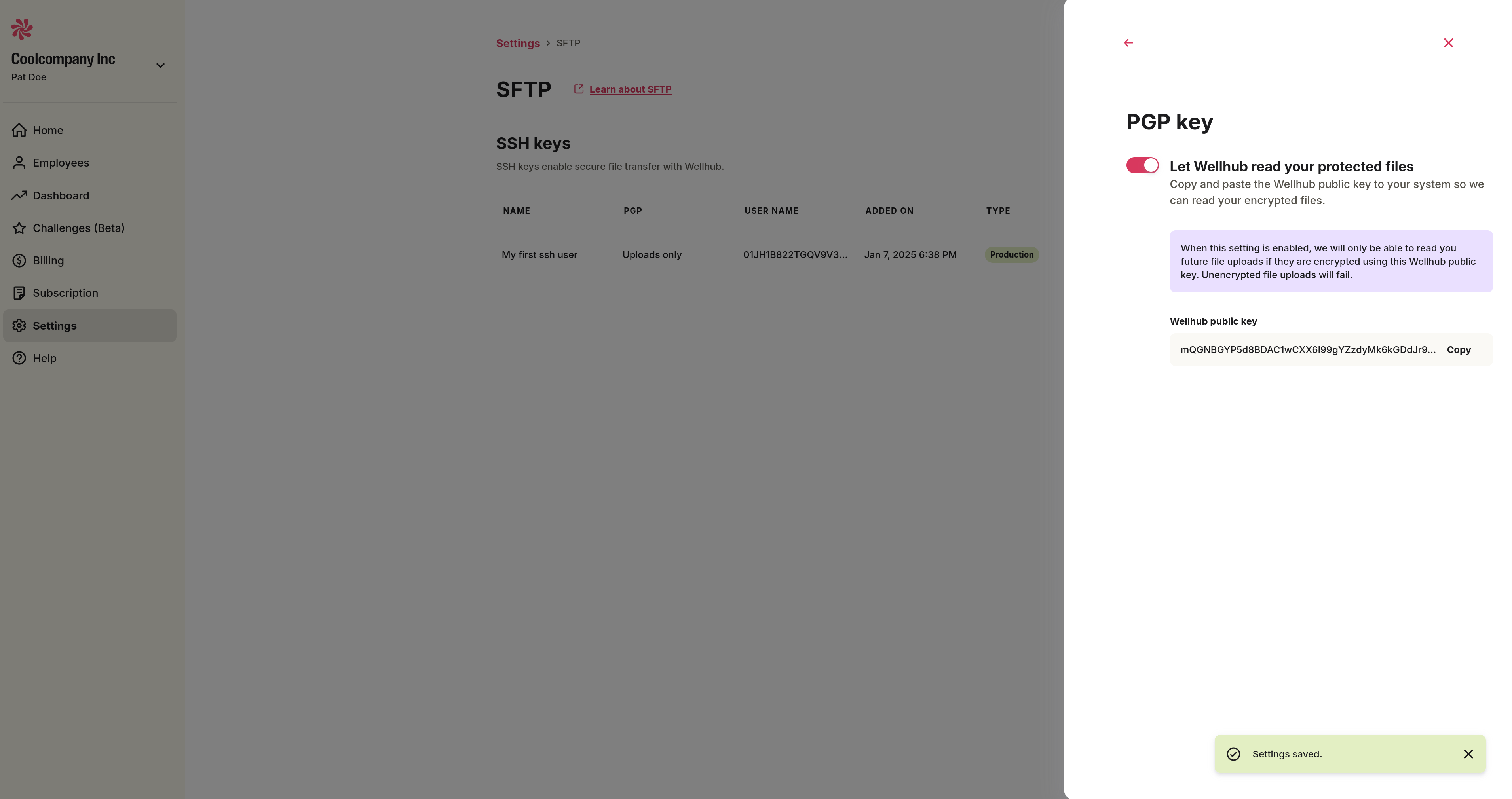
When upload encryption is enabled, you are responsible for encrypting files before sending them to Wellhub. Files are encrypted using Wellhub's PGP public key, which is provided by the Portal.
Step 1 — Enable upload encryption and get Wellhub's public key
- In the Portal, go to the SFTP page (side menu → "Settings" → "SFTP").
- Select an SSH user and click the arrow icon on the right.
- In the drawer that opens, select "Send encrypted files to Wellhub", enable the toggle, and wait for the "Settings saved" confirmation.
- Click "Copy" to copy Wellhub's PGP public key.
Step 2 — Import Wellhub's public key
Create a new file (e.g. pgp-key-wellhub.pub) and paste the key you copied. Then import it:
gpg --import pgp-key-wellhub.pub
Step 3 — Encrypt and upload
Encrypt your file using Wellhub's public key. Replace ps@gympass.com.br with the recipient email associated with the imported key:
gpg --encrypt --recipient ps@gympass.com.br --output output.csv.gpg employees.csv
Upload the resulting .gpg file to the SFTP Server.
Encrypting file downloads
When download encryption is enabled, Wellhub encrypts files before making them available for download. Files are encrypted using your PGP public key, which you register in the Portal. You then decrypt downloaded files using your private key.
Step 1 — Generate a PGP key pair
Red Hat and GitHub have documentation for generating a new GPG key.
The key must follow the OpenPGP specification [RFC 9580].
Run the following command and follow the prompts to associate a name and email with the key:
gpg --gen-key
Then export your public key. Replace <YOUR EMAIL> with the email used to generate the key:
gpg --armor --export <YOUR EMAIL>
Step 2 — Enable download encryption and register your public key
- In the Portal, go to the SFTP page (side menu → "Settings" → "SFTP").
- Select an SSH user and click the arrow icon on the right.
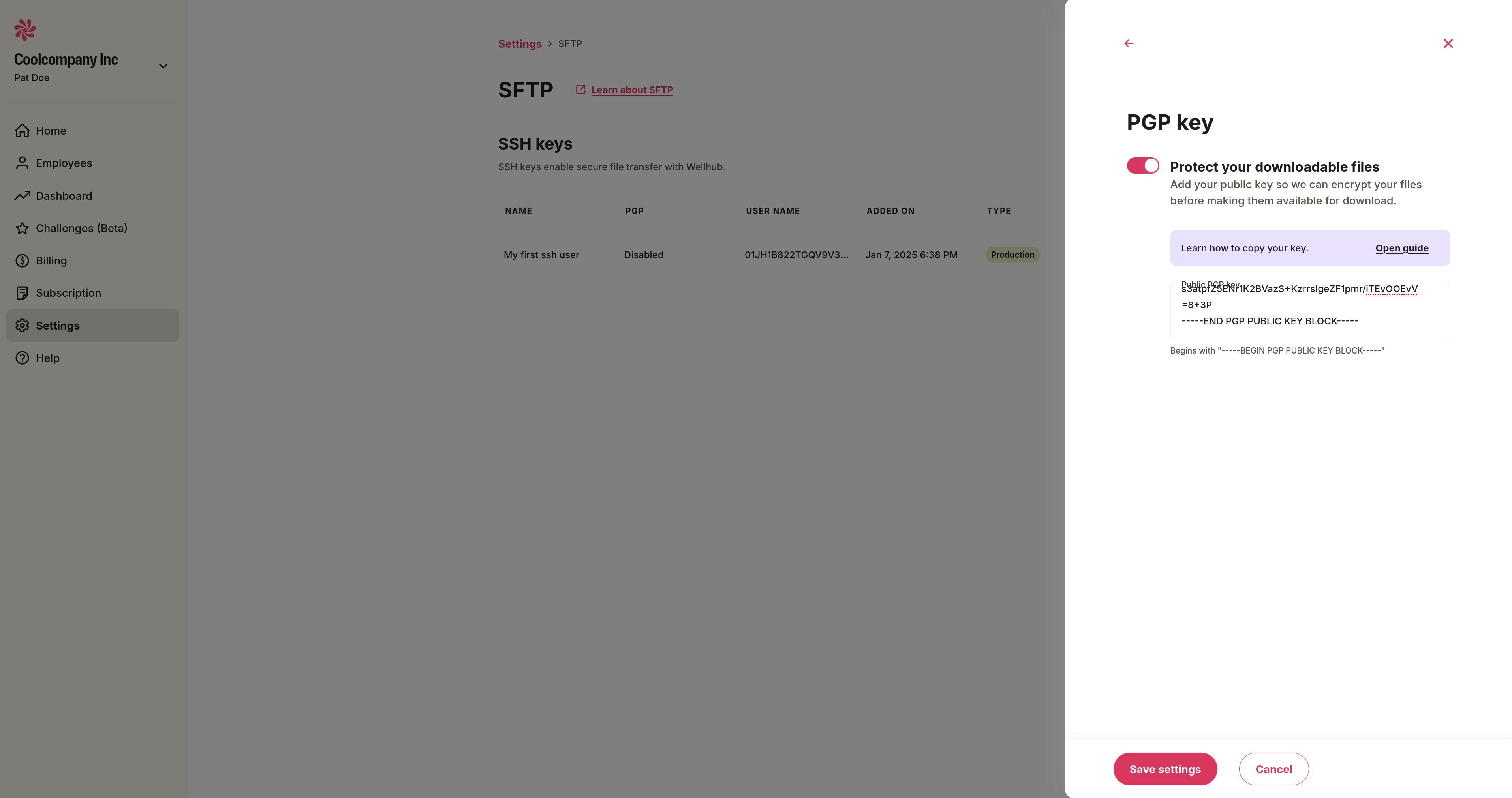
- In the drawer that opens, select "Receive encrypted files from Wellhub", enable the toggle, and paste your PGP public key in the field provided.
- Click "Save settings". All files downloaded through this SSH user will now be encrypted with your public key.
Step 3 — Decrypt downloaded files
After downloading an encrypted file (e.g. gympass-year-report.zip.pgp), decrypt it using your private key:
gpg --decrypt --output output.zip gympass-year-report.zip.pgp
PGP MDC
PGP MDC (Modification Detection Code) is a security feature in OpenPGP that verifies the integrity of encrypted messages — it confirms that a file has not been tampered with in transit.
The Wellhub SFTP Server validates MDC on all incoming PGP files. Files uploaded without MDC enabled will be rejected.
Technical notes
- MDC has been enabled by default in GnuPG since 2003 for new keys.
- If you receive a warning about missing integrity checks during decryption, the file was encrypted without MDC. Newer GPG versions may require workarounds to decrypt such files — this is strongly discouraged for any new encryption.