Encryption
Introduction
PGP encryption is optional but supported for both file uploads and downloads on the Wellhub SFTP Server, providing an extra layer of security for sensitive data.
Encryption is configured per SFTP SSH key. A company can have multiple SFTP SSH keys, each with its own encryption settings. By default, encryption is disabled for both uploads and downloads on new SFTP SSH keys.
Once encryption is enabled for uploads, all uploaded files must be encrypted — the SFTP Server will reject any unencrypted file.
Similarly, once encryption is enabled for downloads, all files downloaded through that SFTP SSH key will be encrypted.
Encrypting file uploads
When upload encryption is enabled, you are responsible for encrypting files before sending them to Wellhub. Files are encrypted using Wellhub's PGP public key, which is provided by the Portal.
Step 1 — Enable upload encryption and get Wellhub's public key
- In the Portal, go to the SFTP SSH keys page (side menu → "Settings" → "SFTP").
- Click the key you want to configure to open its details.
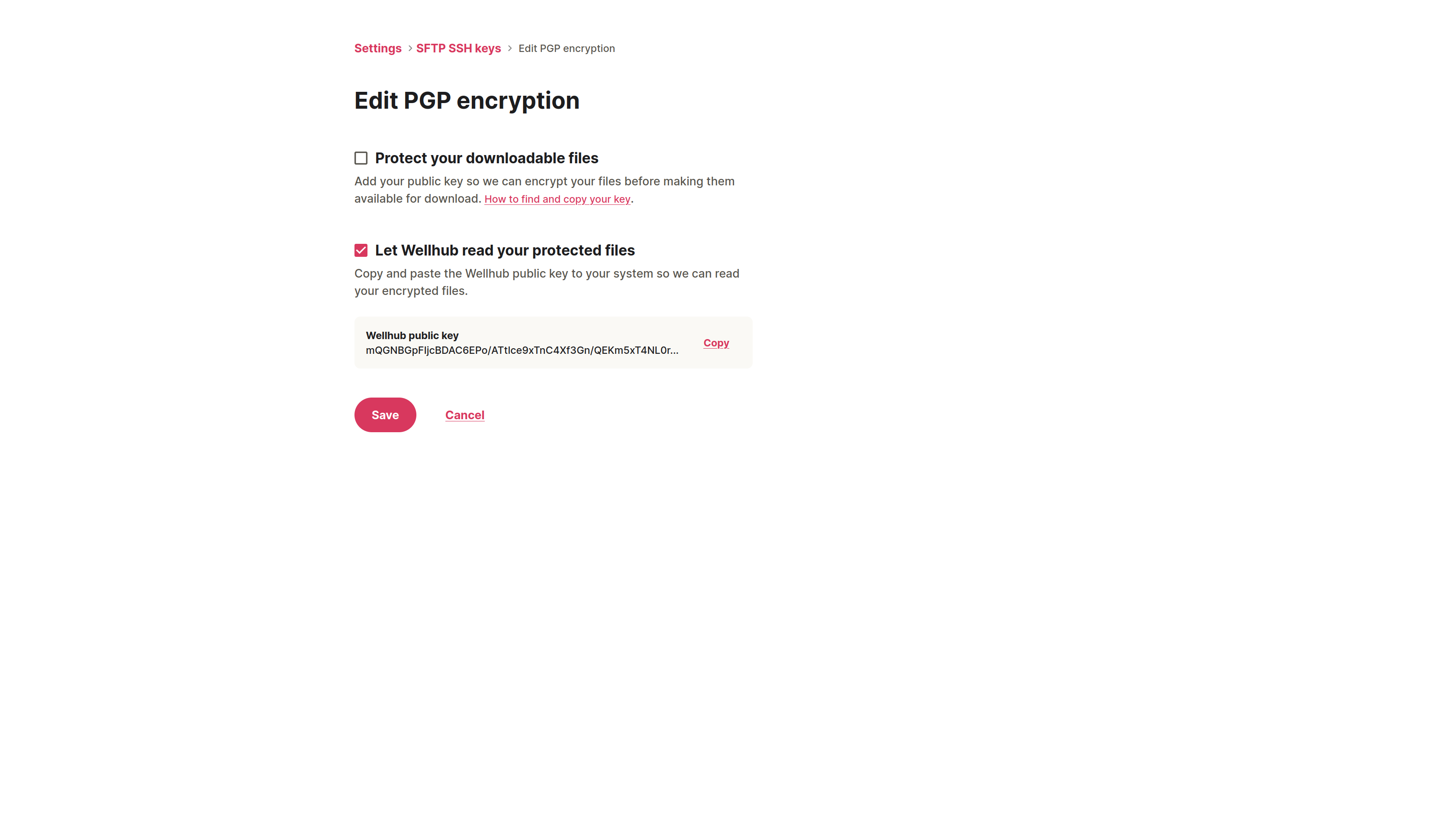
- In PGP encryption, click Edit to open the Edit PGP encryption page.
- Check Let Wellhub read your protected files.
- Click Copy to copy Wellhub's PGP public key.
- Click Save.
Step 2 — Import Wellhub's public key
Create a new file (e.g. pgp-key-wellhub.pub) and paste the key you copied. Then import it:
gpg --import pgp-key-wellhub.pub
Step 3 — Encrypt and upload
Encrypt your file using Wellhub's public key. Use the recipient email address associated with the imported key (visible after importing with gpg --list-keys):
gpg --encrypt --recipient <recipient-from-wellhub-key> --output output.csv.gpg employees.csv
Upload the resulting .gpg file to the SFTP Server.
Encrypting file downloads
When download encryption is enabled, Wellhub encrypts files before making them available for download. Files are encrypted using your PGP public key, which you register in the Portal. You then decrypt downloaded files using your private key.
Step 1 — Generate a PGP key pair
Red Hat and GitHub have documentation for generating a new GPG key.
The key must follow the OpenPGP specification [RFC 9580].
Run the following command and follow the prompts to associate a name and email with the key:
gpg --gen-key
Then export your public key. Replace <YOUR EMAIL> with the email used to generate the key:
gpg --armor --export <YOUR EMAIL>
Step 2 — Enable download encryption and register your public key
- In the Portal, go to the SFTP SSH keys page (side menu → "Settings" → "SFTP").
- Click the key you want to configure to open its details.
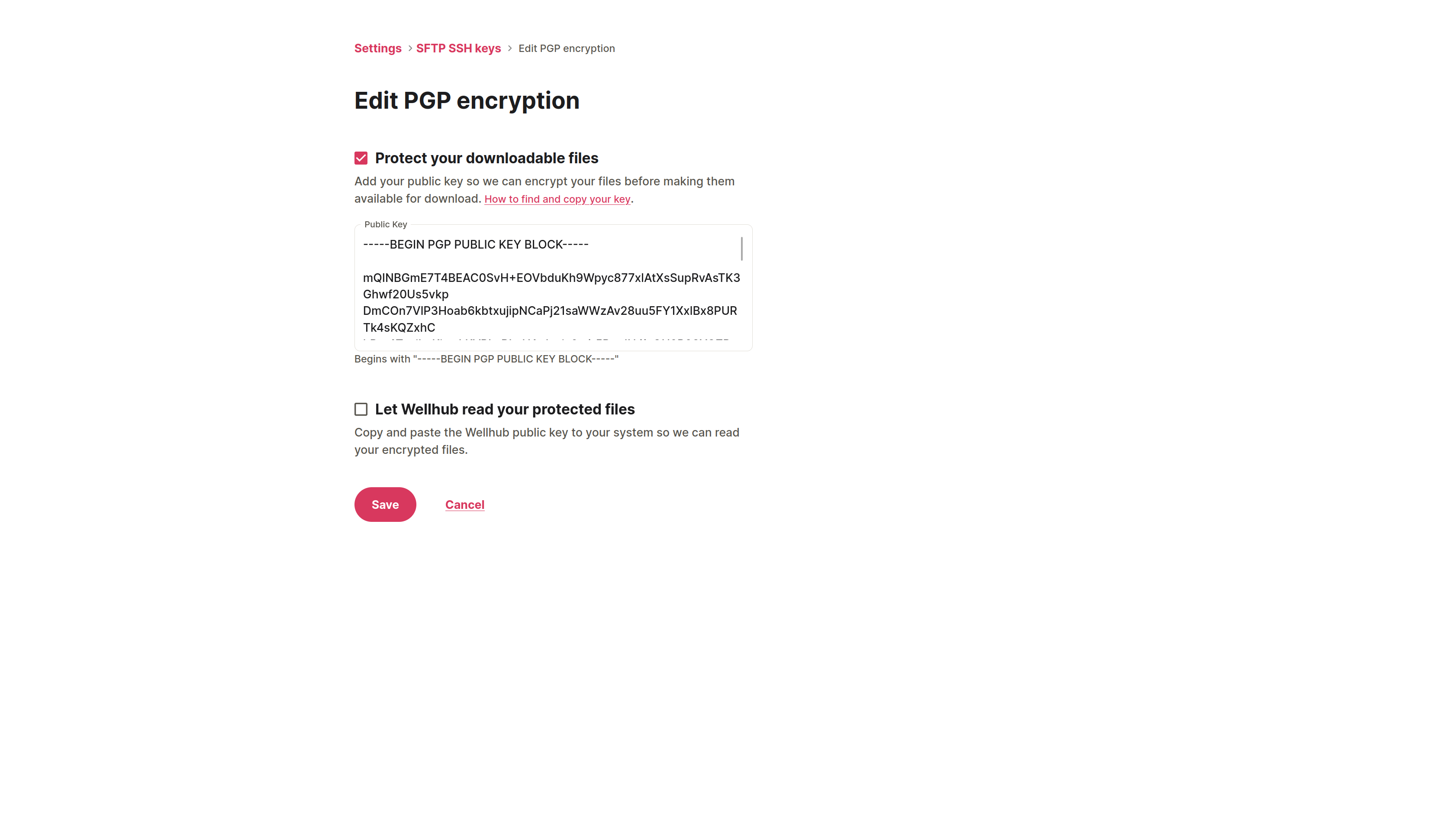
- In PGP encryption, click Edit to open the Edit PGP encryption page.
- Check Protect your downloadable files and paste your PGP public key in the Public Key field. The key must begin with
-----BEGIN PGP PUBLIC KEY BLOCK-----. - Click Save. All files downloaded through this SFTP SSH key will now be encrypted with your public key.
Step 3 — Decrypt downloaded files
After downloading an encrypted file (e.g. gympass-year-report.zip.pgp), decrypt it using your private key:
gpg --decrypt --output output.zip gympass-year-report.zip.pgp
PGP MDC
PGP MDC (Modification Detection Code) attaches an integrity check to the ciphertext so that decryption fails loudly if the file has been altered after encryption.
Why it matters
PGP encryption alone protects confidentiality — it stops third parties from reading the file. It does not, on its own, protect integrity: an attacker who intercepts the ciphertext can flip bits to alter the decrypted output (for example, changing employee IDs, amounts, or eligibility flags in a payload), and the recipient has no reliable way to notice. MDC closes that gap by making any modification detectable at decryption time.
This matters because the data you send through SFTP feeds downstream systems (eligibility, billing, reporting). A silently corrupted file would be processed as if it were legitimate. Wellhub therefore treats missing MDC as missing integrity protection, not as a minor warning.
The Wellhub SFTP Server validates MDC on all incoming PGP files. Files uploaded without MDC enabled will be rejected.
Technical notes
- Modern GnuPG enables integrity-protected encryption (MDC) by default when encrypting, so files produced by a reasonably current GnuPG will typically already include it.
- If you see a warning about missing integrity checks when decrypting a file you produced, that means the file was encrypted without MDC and will be rejected on upload. Re-encrypt it with a current GnuPG version so the message is produced with integrity protection enabled.