Getting Started with SFTP
Wellhub supports SSH File Transfer Protocol (SFTP) for secure file exchanges. SFTP uses the Secure Shell (SSH) network protocol and public/private key pairs to enforce security.
Support for SHA-1-based SSH algorithms on the Wellhub SFTP server is being deprecated. All clients should migrate to Ed25519 or other supported algorithms now. See SSH Key Algorithm Requirements for details and a migration checklist.
General Information
Connection settings
- Host:
sftp.clients.wellhub.com - Port:
443
Limits
| Limit | Value |
|---|---|
| Total number of sessions per client | 5 |
| Max file size | 40 Mb |
| Total number of files per session | 2 |
| Unprocessed files per session | 1 |
| Accepted file types | .xlsx, .xlsx.pgp, .xlsx.gpg, .csv, .csv.pgp, .csv.gpg |
Authentication
To interact with the SFTP Server, you'll need to generate an SSH key on your computer, create an SFTP SSH key in the Wellhub Clients Portal, and register your SSH public key.
Only your public key (typically id_ed25519.pub) is uploaded to the Portal. Your private key (id_ed25519, with no .pub extension) must stay on the machine that initiates the SFTP connection and must never be sent to anyone. Wellhub will never ask you to share your SSH private key — any request to do so (by email, chat, phone, or ticket) should be treated as a phishing or social-engineering attempt and reported.
If you suspect your private key has been exposed, generate a new key pair and replace the registered public key in the Portal immediately.
Generate an SSH Key
- Open a Terminal and paste the text below, replacing the email with your email address.
ssh-keygen -t ed25519 -C "your_email@example.com"
When executing this command, the SSH key generator will ask for information such as where to save the new key and whether or not it should have a passphrase. If you have any doubts during this process, refer to this step-by-step guide from GitHub.
Create an SFTP SSH Key
With an SSH key in hand, access the Portal using your Wellhub account.
The process for creating a new SFTP SSH key is the same, regardless of the type of management of your Wellhub account.
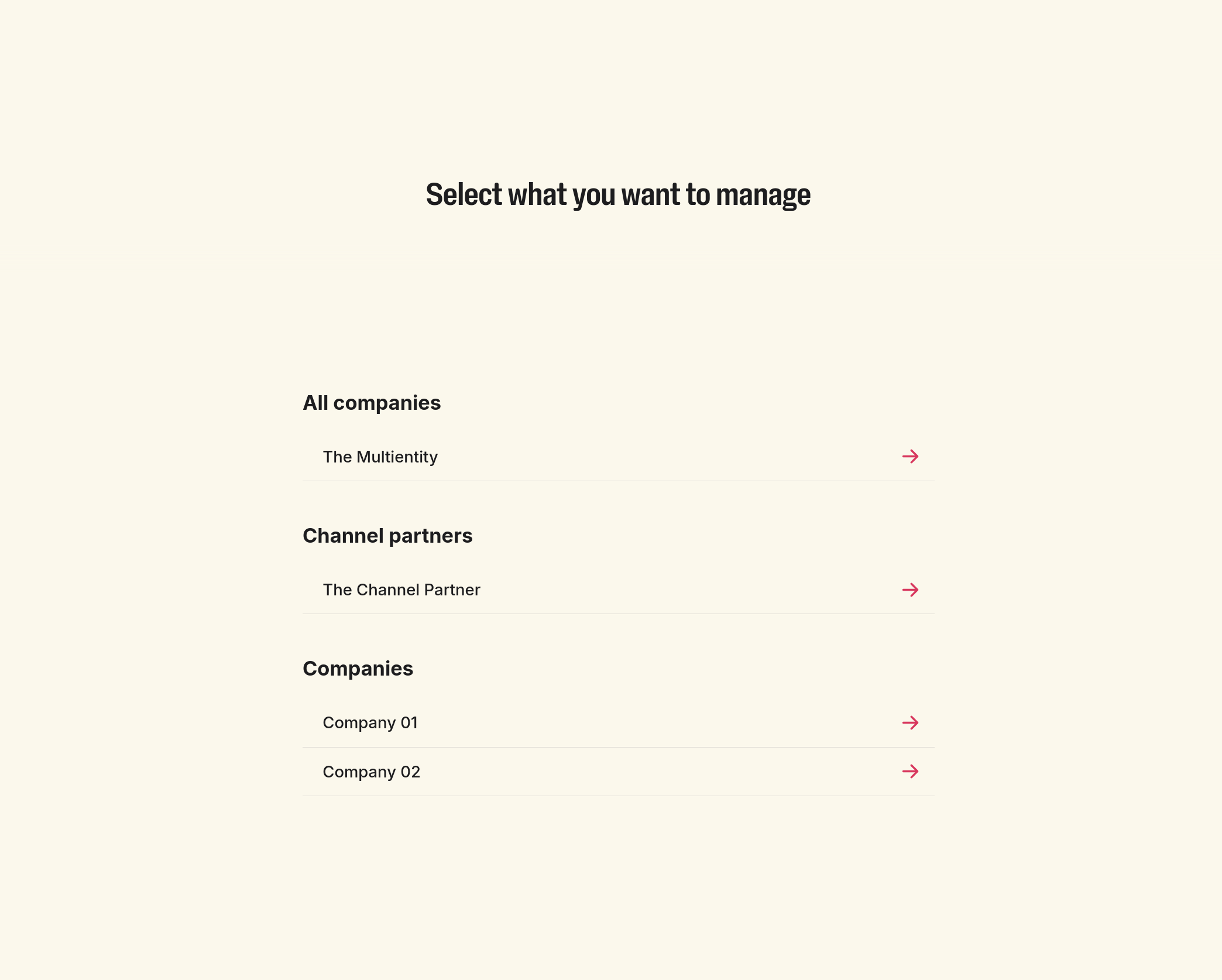
- Select which entity you want to manage through the SFTP Server. The type of key depends on your selection:
| Entity type | Allows you to manage |
|---|---|
| Single entity | A single company. |
| Multi entity / All companies | All companies within a group, collectively. |
| Channel partner | Companies under a reseller structure, collectively. |
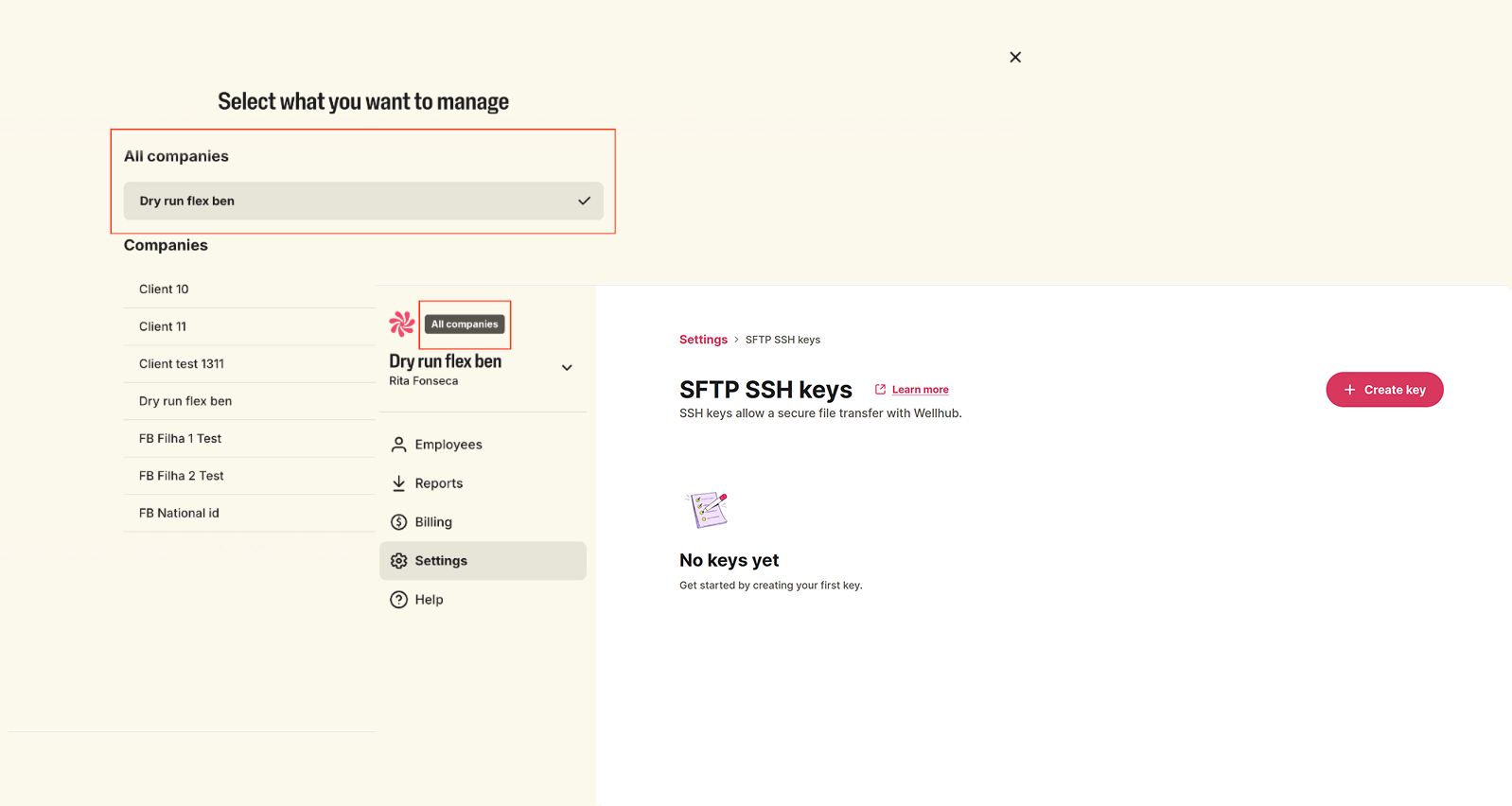
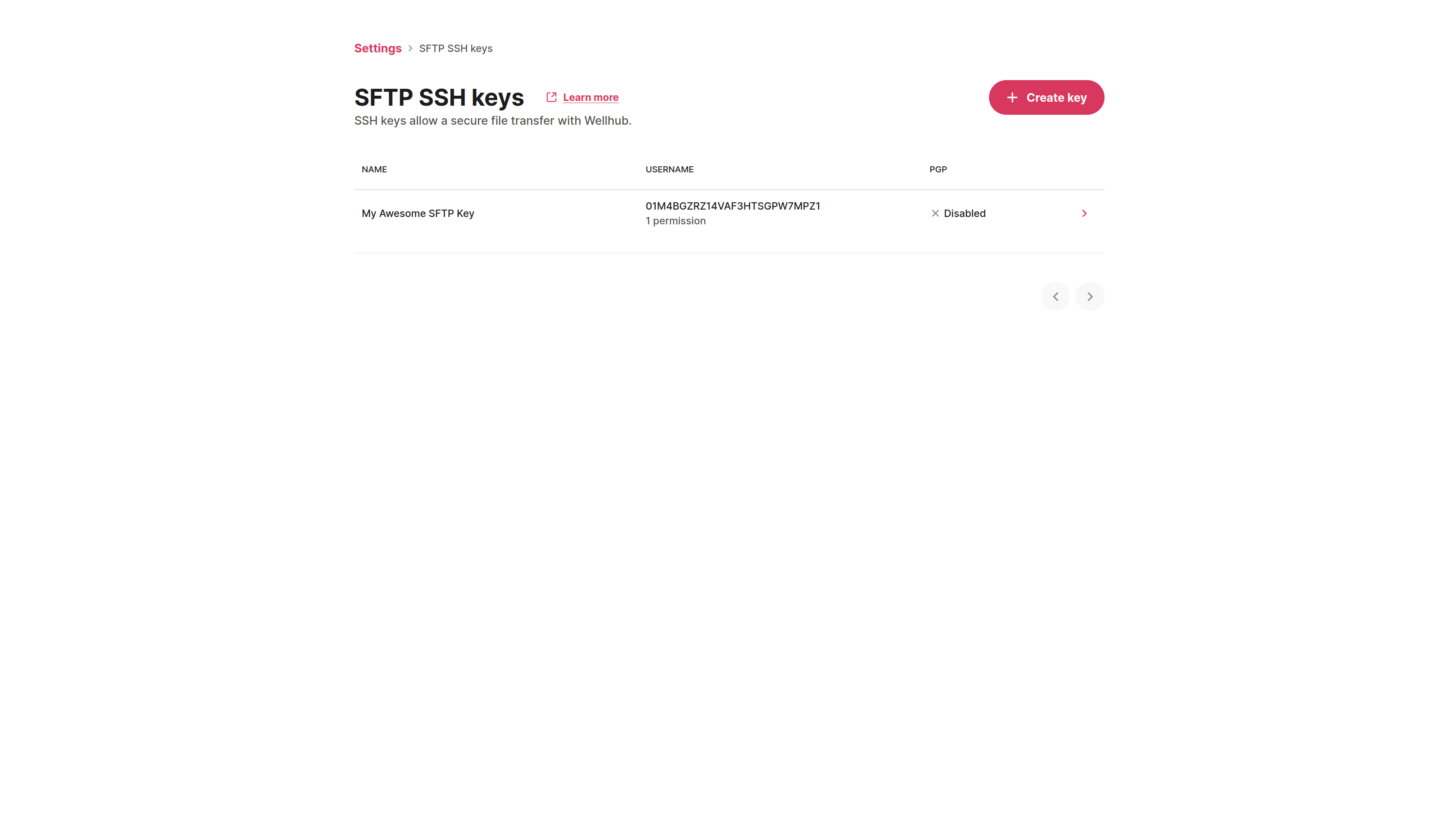
- Open the SFTP SSH keys page (sidebar menu, Settings, then SFTP) and click Create key.
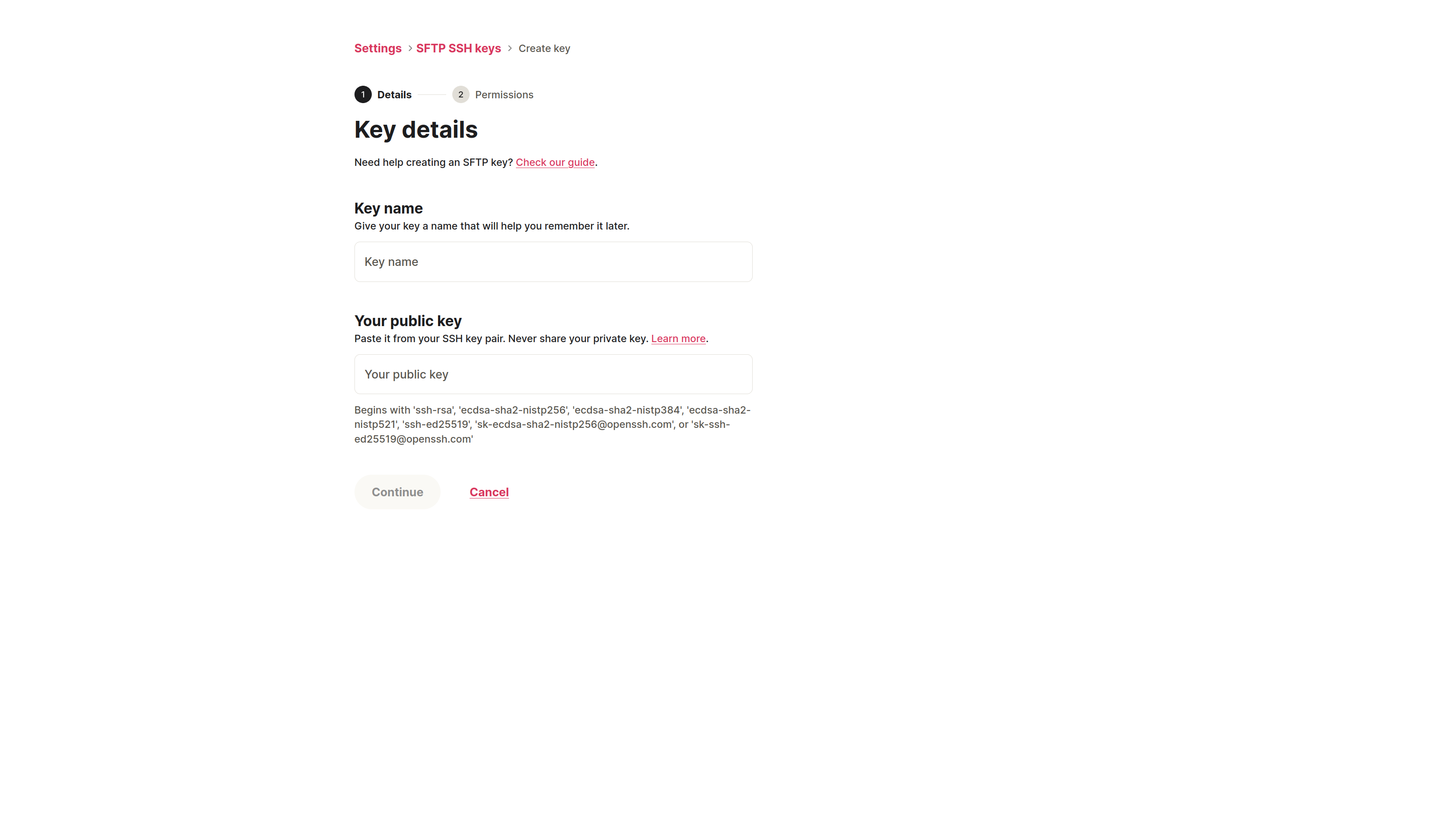
In the Details step, give a name to the key in Key name and paste your SSH public key in Your public key. Then click Continue.
To create the key pair, you can follow this guide: How to create SSH keys on macOS, Windows or Linux.
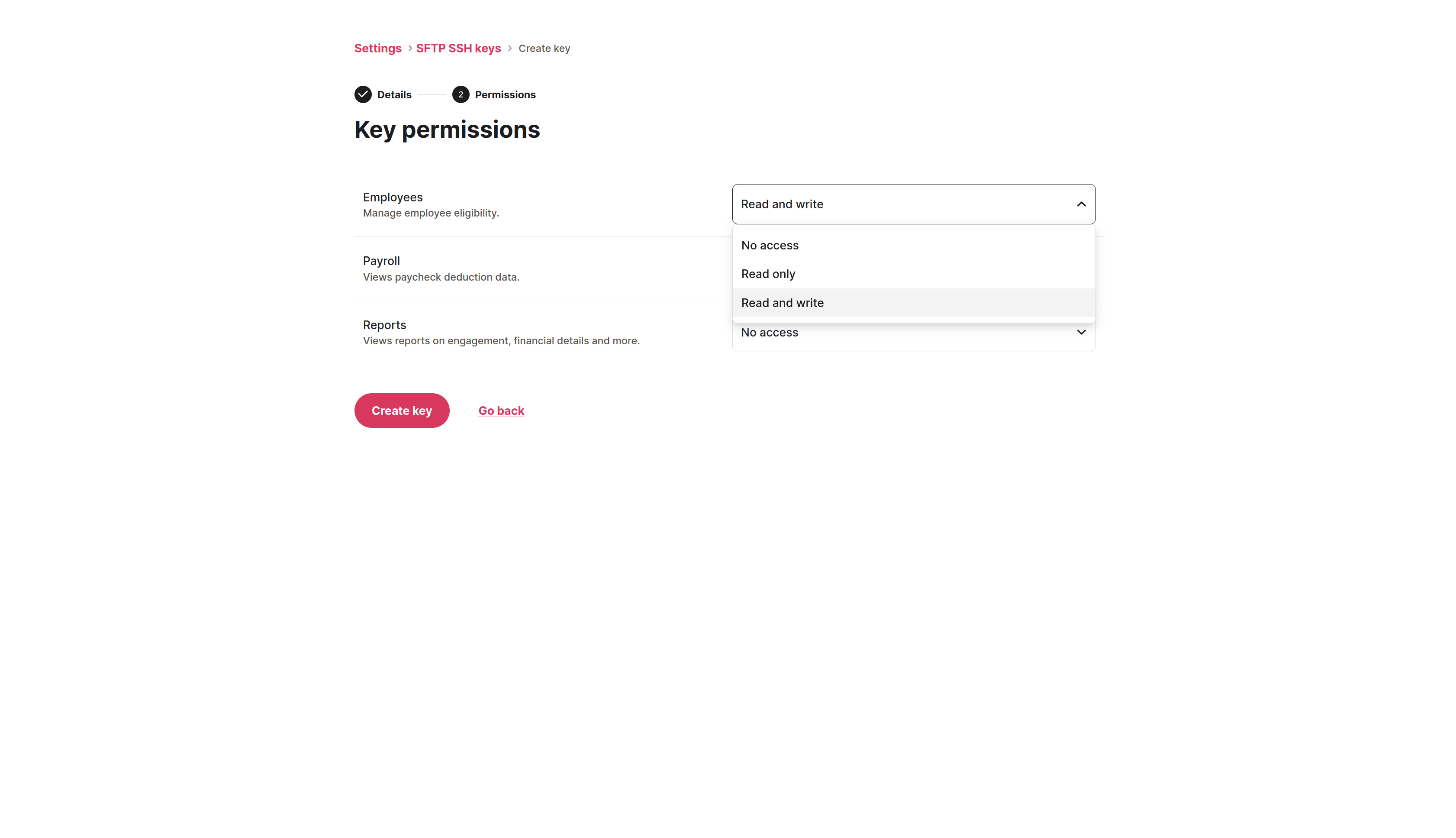
- In the Key permissions step, choose the access level of the key for each area: No access, Read only or Read and write. Then click Create key.
| Permission | Used for | Minimum access level |
|---|---|---|
| Employees | Eligibility file upload and management. See Eligibility. | Read and write |
| Payroll | Payroll file download. Note that payroll isn't available for channel partner keys. See Payroll. | Read only |
| Reports | Reports file download. See Reports. | Read only |
| Flexible Benefits | Flexible benefit credits upload, management and history download. Will be displayed for clients with this SKU. See Flexible Benefits. | Read and write |
Uploads require Read and write access. A key with Read only access can only download files.
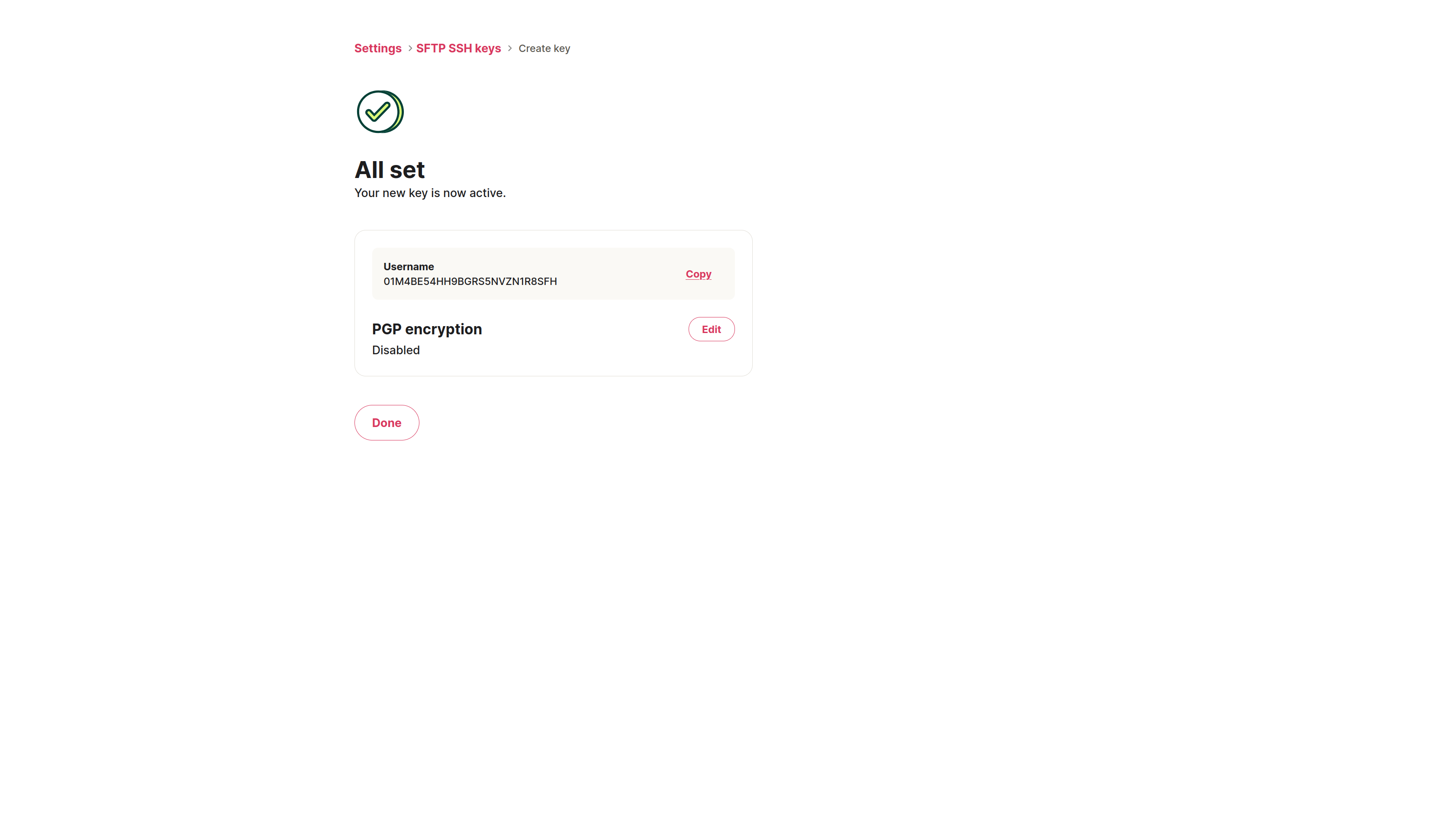
- The All set screen confirms that your new key is active and shows its Username. Click Copy to copy it, then click Done.
(Optional) Additional encryption (PGP)
If you wish, you can add additional PGP encryption for both uploads (such as eligibility and flexible benefits files) and downloads (such as payroll, reports and flexible benefits files). See Encryption for the full instructions.
Accessing the SFTP Server
Before connecting to the SFTP Server, you need the Username of an SFTP SSH key created in the Portal.
Go to the SFTP SSH keys page (sidebar menu, Settings, then SFTP) in the Portal.
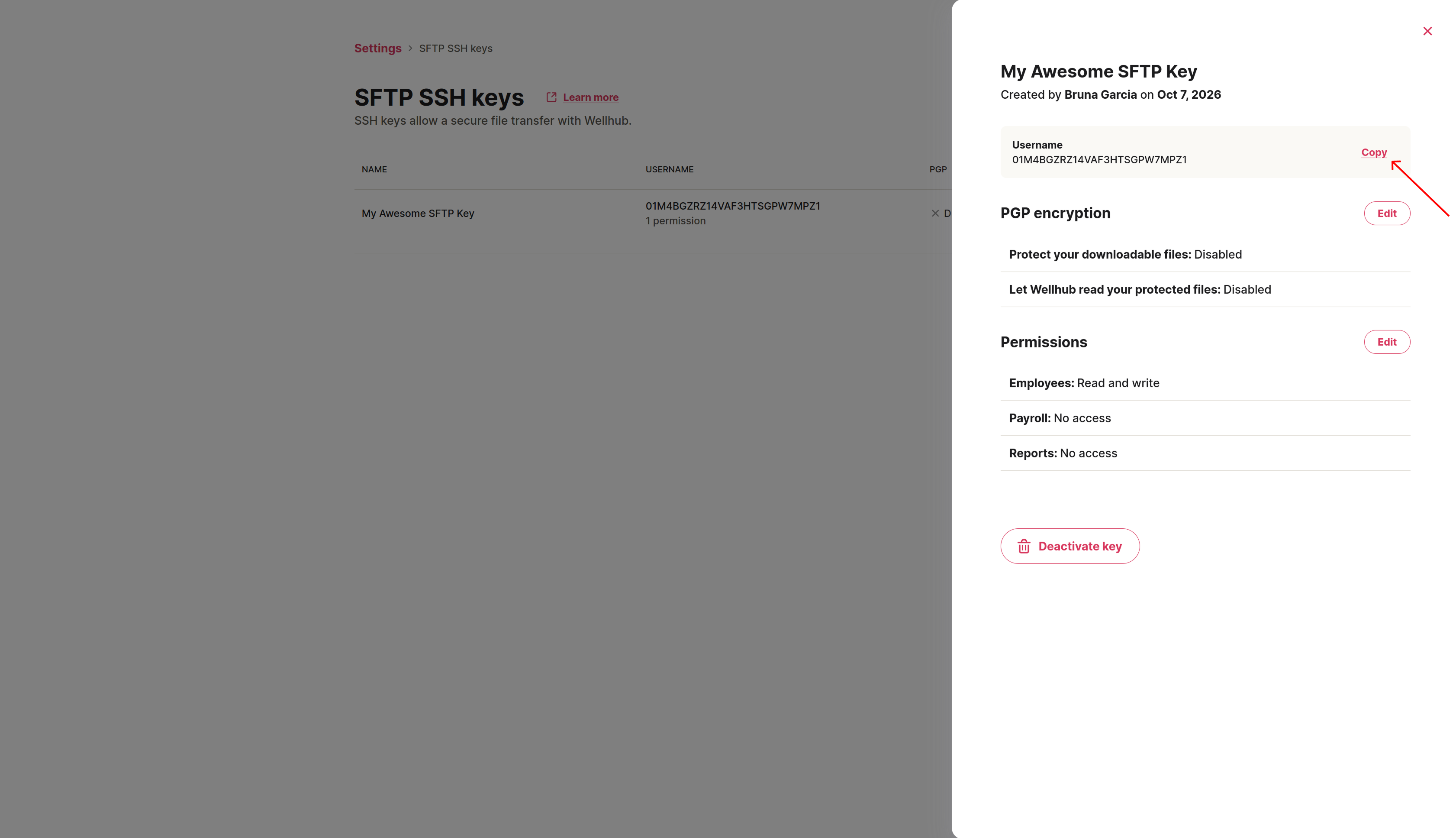
Click the key you want to use to open its details.
In the drawer, click Copy next to Username, or copy it manually.
Connect to the SFTP Server
- Open a terminal and run the command below, replacing
your_usernamewith the Username copied in the previous step.
sftp -P 443 -i ~/.ssh/id_ed25519 your_username@sftp.clients.wellhub.com
The flag -i ~/.ssh/id_ed25519 indicates the location of your SSH key's private key. Change the location if necessary.
- Upon executing this command, you should see the welcome message from the SFTP Server.

SSH Key Algorithm Requirements
Wellhub's SFTP server supports modern SSH key algorithms. To maintain a secure connection environment, support for SSH algorithms that rely on SHA-1 is being deprecated and will eventually be discontinued.
Why SHA-1 is being deprecated
SHA-1 (Secure Hash Algorithm 1) is a cryptographic hash function historically used in SSH key and host key algorithms to verify authenticity. Over time, SHA-1 has become vulnerable to practical collision attacks — where two different inputs can produce the same hash value — which breaks a core security guarantee and makes it unsuitable for modern cryptographic use.
Continuing to rely on SHA-1-based algorithms exposes clients to:
- Potential impersonation or man-in-the-middle attacks if collisions are exploited
- Reduced trust in the integrity and authenticity of SSH connections
- Non-compliance with modern security recommendations and best practices
Supported SSH key algorithms
The SFTP server currently supports the following SSH public key algorithms:
| Algorithm | Notes |
|---|---|
| Ed25519 (recommended) | Modern, fast, and secure elliptic-curve algorithm. Recommended as the default for all new and existing clients. |
| ECDSA (SHA-2 family) | Elliptic-curve algorithms using SHA-2 digests, available in most modern SSH clients. |
| RSA with SHA-2 | RSA key algorithms using SHA-2 digests rather than SHA-1 for signatures. |
Prioritize Ed25519 wherever possible — it provides strong security with smaller keys and better performance compared to traditional RSA-based algorithms.
Deprecation timeline
There is currently no fixed date set for the full removal of SHA-1-based SSH algorithms. However, the deprecation is in progress and support may be removed after an appropriate notice period.
Do not wait for a fixed cutoff date. Migrate to SHA-1-free configurations now to avoid disruptions once SHA-1-based algorithms are ultimately disabled.
Migration checklist
Use the following checklist to migrate away from SHA-1-based SSH algorithms:
- Inventory existing keys and configurations: Identify all client systems and automated jobs that connect to the SFTP server, and list the SSH key types and algorithms they currently use.
- Generate new Ed25519 keys: Create new Ed25519 key pairs for each client and store private keys securely (see Generate an SSH Key above).
- Register new keys with the SFTP server: Add the new public keys to the Portal as described in Create an SFTP SSH Key.
- Update client configurations: Configure SSH clients to prefer Ed25519 and SHA-2-based algorithms and to stop offering SHA-1-based algorithms during negotiation.
- Test and phase out legacy keys: Validate connectivity using the new keys, update automation and documentation, then remove remaining SHA-1-dependent keys and algorithms from use.
File Exchange Frequency
The first production Eligibility File must be sent to Wellhub at least one week before the date that the Wellhub program will be announced to your company's employees.
For maintenance purposes, the Eligibility File must be sent to Wellhub at a minimum once a month. When integrating full files, sending it more than once a day is not recommended.
File Format Requirements
- It must include the configured eligible identifiers for the client/company tax ID — see Entity Types for details
- The header is mandatory, and needs to be in English for all countries
- The column order is not mandatory
- The column titles (attribute names) must be written exactly as indicated in the specification
- Unknown columns will be ignored
- The CSV can use any of the accepted separators: comma (
,), semicolon (;), tab, and space - CSV UTF-8 is the format supported
- National ID and Tax ID are validated as a mask; if they are wrong, an error is thrown
- Accepted file types:
.xlsx,.csv→ for SSH;.xlsx.pgp,.xlsx.gpg,.csv.pgp,.csv.gpg→ if PGP is enabled
Note that even though .csv is supported, since this file format can be mutable, using .xlsx or encrypted files with PGP is highly recommended.
File Naming Convention
For production: your company name_Eligibility_mmddyyyy.csv
For test: your company name_Eligibility_Test_mmddyyyy.csv